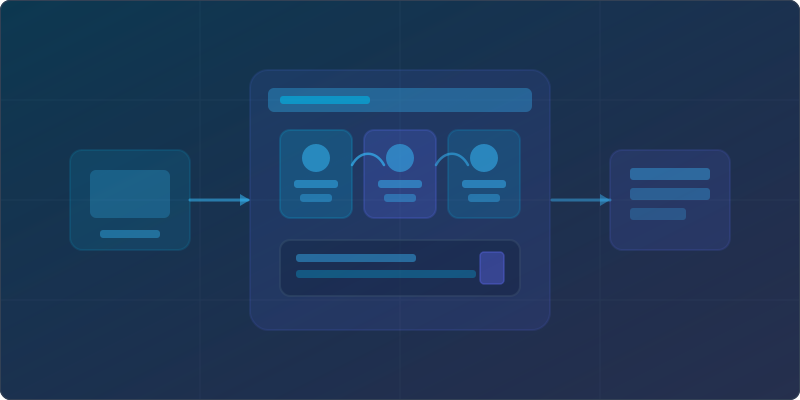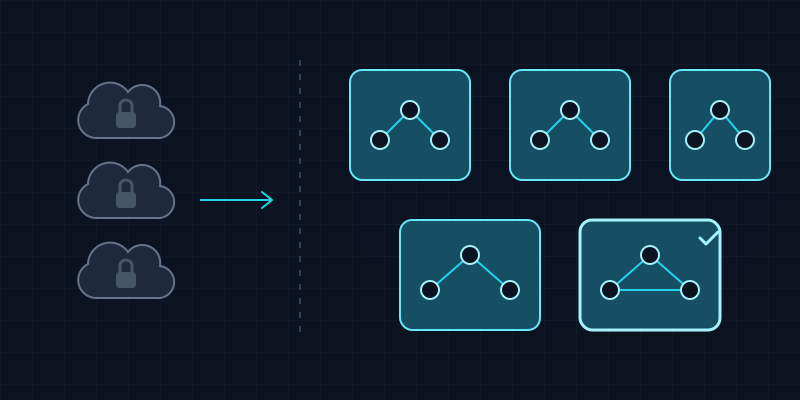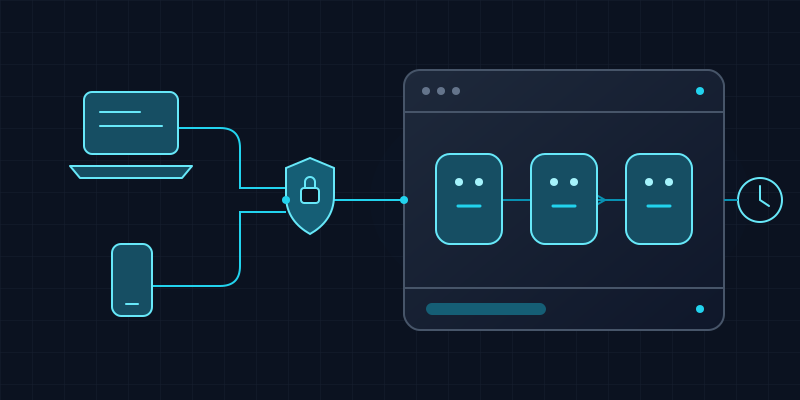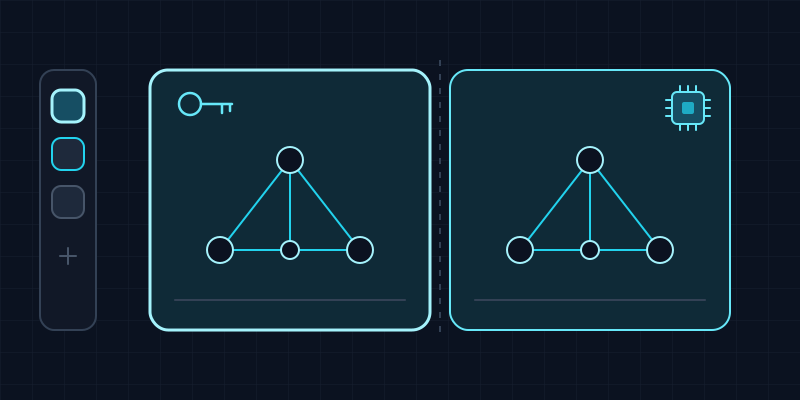
Ask an assistant to plan a family weekend right after it spent the morning in your work repo, and you can guess what happens: it suggests checking the sprint board first, on the company’s AI seat. One assistant with one memory and one set of accounts doesn’t know which part of your life it’s in. The fix isn’t a better prompt. It’s two rooms.
This post is about how that split works in kwant, the open-source, self-hosted AI agent team I wrote about in Self-Host a Team of AI Agents in One Binary. kwant calls the rooms spaces, and they’re the feature I lean on most. The setup I run is simple: one space for work with the company’s AI accounts, and one private space on my own models.
Everything below is checked against kwant’s README, the spaces docs, the accounts docs and the source as of November 16, 2026. Where something is app-wide rather than per space, I say so.
Why one assistant leaks context
A single chat assistant is one bucket. Whatever you paste into it, whatever it remembers, whichever account it bills, applies everywhere. That’s fine for answering questions. It stops being fine once the assistant does things:
- Accounts get mixed. The company pays for a Claude or Codex seat for work. Using it to plan your weekend is at best awkward. Using your personal key on client code may break a policy you signed.
- Memory follows you around. A bot that learned your work conventions brings them into personal tasks, and the reverse is worse: personal details turning up in a work summary.
- Tools have the wrong reach. A bot that’s allowed to open PRs on the work repo has no business touching your home server, and a bot that manages your personal inbox shouldn’t see the company’s MCP servers.
- One approval rule doesn’t fit both. I want work bots stopping before every
git push. At home I’m happier letting a research bot browse without asking.
The hosted agents have the same shape. Grok Bot, Claude Duet and OpenAI dots each run on the vendor’s cloud under one account. If you want a hard line between your employer’s AI and your own, the usual answer is two accounts and two logins. (I compared the self-hosted alternatives in Open-source alternatives to Grok Bot, Claude Duet and Dots.)
What a space owns
A space in kwant is a separate area of the app with its own bots and everything they use. According to the docs and the database schema, each space has its own:
| Belongs to the space | What that means in practice |
|---|---|
| Bots and teams | Each bot lives in exactly one space, with its channels and direct chats. Memory and skills are per bot, so they stay in that space too. |
| Routines | Scheduled work belongs to the space. Archive the space and its routines pause. |
| Skills | Space-wide skills, plus each bot’s own. New skills wait for your approval. |
| MCP tool servers | A bot only sees the MCP servers registered in its own space. |
| AI accounts | Claude, Codex and Grok logins, Anthropic / OpenAI / xAI API keys and custom OpenAI- or Anthropic-compatible servers, in one Order to use for that space. |
| Approval rule and hiring rule | Ask before running commands, Ask only when risky or Don’t ask, and what happens when a bot proposes a new teammate. |
| Documents | The files bots quote from, under Settings → This space → Documents. |
Search, the Inbox (with its Loose ends tab) and the Mission board always show the space you have open, so the work queue doesn’t fill up with home errands.
Some things are deliberately app-wide, under Settings → All spaces: Usage, Notifications, Flight School, signed-in devices, and the computer bots work on (Local or VM mode). That last one matters. A space is a boundary for bots, accounts, tools and data inside kwant. It is not an operating-system sandbox. In Local mode, bots in both spaces run commands on the same machine, so the approval rule is what stands between a bot and your files. If you need a stronger wall, run separate kwant installs or use VM mode.
The setup I use: work vs home
Here’s the concrete split. Nothing exotic.
The work space
This is the Default space every install starts with, renamed. (You can rename Default but not archive it.)
- Accounts: the company’s Claude login first in the order, the company’s Codex seat as the fallback. When one runs out of usage, kwant moves the turn to the next account in the space’s order and says so in one line under the bot’s name, something like “Claude is out until 03:00 · answered on Codex”.
- Approval rule: Ask before running commands. Work bots touch repos and tickets, so I’d rather see every command.
- Tools: the work MCP servers and the work repo. Dev mode lives under Settings → This space → General, so it only applies here.
- Bots: for example a lead, a coder and a reviewer, plus a routine such as a weekday summary of what changed.
The private space
- Accounts: my own models only, through a local model server and add it as a Custom API account: base URL plus a key if the server needs one. kwant checks the server’s model list when you save it and shows whether it’s ready, unreachable or rejected the key. It speaks the OpenAI chat API (Ollama, LM Studio, OpenRouter and others) or the Anthropic Messages API. Plain Ollama also works as an engine of its own at
http://localhost:11434, with no account or key. - Use This machine: off. This switch is the one people miss. With it on, bots in a space can use the
claude,codexandgrokCLIs signed in on the computer running kwant. With it off, the space sticks to its own accounts, and the docs are explicit that bots never fall back to it. A custom API account never falls back to the host’s accounts either. So the work logins on my laptop can’t quietly answer a private prompt. - Approval rule: Ask only when risky, the default for new spaces. Ordinary work runs;
git push, network calls, unknown commands and changes outside the bot’s folder show an approval card with the exact command and Allow once, Always allow or Deny. - Bots: for example an assistant for errands, a researcher and a bot for side projects.
One detail I like for the private side: when a bot’s model is set to auto and a message asks to keep things local (“keep this private”, “offline”), the router can keep it on Ollama, if Ollama is ready.
Whatever you pick, payments always ask, in every space and every mode, including a checkout in the bot’s browser behind a plain “Continue”. No space setting turns that off.
Creating a second space
After installing kwant, the second space is a couple of clicks:
- Click New space on the space rail on the left.
- Give it a name (up to 60 characters), one of 8 icons and one of 8 colours. Distinct colours help more than you’d think when you’re switching fast.
- Decide on Use This machine. Leave it on if you want this space to use the CLIs already signed in on the computer. Turn it off for a space that should only use its own accounts.
- Keep Add accounts next ticked. It opens the new space’s Accounts screen so you can sign in to another Claude, Codex or Grok account, paste an API key, or add a custom server. Accounts you add there stay in this space.
- Create space. It starts empty. “Copy bots from another space” is shown in the dialog as Coming soon, so for now, to reuse a bot, export it from one space and import it into the other (see below).
Then open the gear next to the space name (Settings → This space) and set the approval rule under General. Each bot can follow the space’s rule or override it.
Switching without thinking about it
The rail on the left shows every space, with the open one highlighted. Switching is:
- a click on the rail (on a phone, tap the space name at the top),
- Ctrl + 1–9, or ⌘ + 1–9 on a Mac,
- or a URL. Each space has its own address,
/s/<space>/…, so I keep work and private in separate browser tabs. Every settings tab has an address too, such as/s/<space>/settings/accounts.
There’s one Settings screen with two tabs. This space holds what belongs to the open space (accounts, bots, teams, skills, routines, import and export). All spaces holds the app-wide bits. Once that clicked for me, I stopped wondering where a setting lived.
Moving bots between spaces, safely
Sometimes a bot I built at home turns out to be useful at work, or the other way round. kwant’s Import & export tab handles that: export a whole space or one bot as a file, then import it into the other space. Exports leave out chat history, files, tools and keys, and imports start safe:
- imported bots have no tools until you give them some,
- imported skills wait for your approval,
- imported routines start paused,
- any keys in the file are removed.
That’s the right default for crossing the line between work and home. You get the bot’s role and instructions, not the context it built up on the other side. You can also import bots from elsewhere: a Claude Code subagent, a SKILL.md, a character card or a .kwant.json file.
Retiring a space
When a side project ends, archive its space. Its routines pause, and its bots, chats and settings are kept, so you can restore it later from Archived spaces. kwant has no hard delete for spaces, and if a bot wants to archive one, it asks you first. I’d rather have that than a quiet cleanup job.
When spaces aren’t the answer
To be fair about the limits:
- Not a security boundary on the host. As above, in Local mode both spaces run on the same computer with the same OS user. Approvals help; they’re not isolation.
- Still your providers. A work space on a company Claude account still sends prompts to Anthropic. Only a space on local models keeps prompts on your hardware.
If you want separation per person or per client with a real wall between them, run separate kwant instances, for example one per VPS as in Self-host AI agents on a VPS.
How this connects to the Go posts
If you’ve followed the Go AI posts here, a space is roughly what you’d end up building by hand once your agent loop runs for more than one part of your life: a config scope for which client and key to use (the bit I skipped in Calling an LLM from Go), which tools to register, and which approval policy wraps the tool calls. You can build that yourself. It’s the kind of plumbing that’s more pleasant to get as a switch in Settings.
Try it
- Install kwant: the Mac app, the Linux
.deb(walkthrough in Install kwant on Linux), the Windows beta, or a server. - Rename Default to whatever your main context is, and add its accounts.
- Create a second space for the other half of your life, turn off Use This machine if it should only use its own accounts, and point it at your own model.
- Give each one a bot or two and a routine, and see if the cross-talk stops.
If keeping work and home AI apart is something you’ve been hacking around, star kwant on GitHub. It’s open source (AGPL-3.0), runs on hardware you control, and stars genuinely help other people find it.